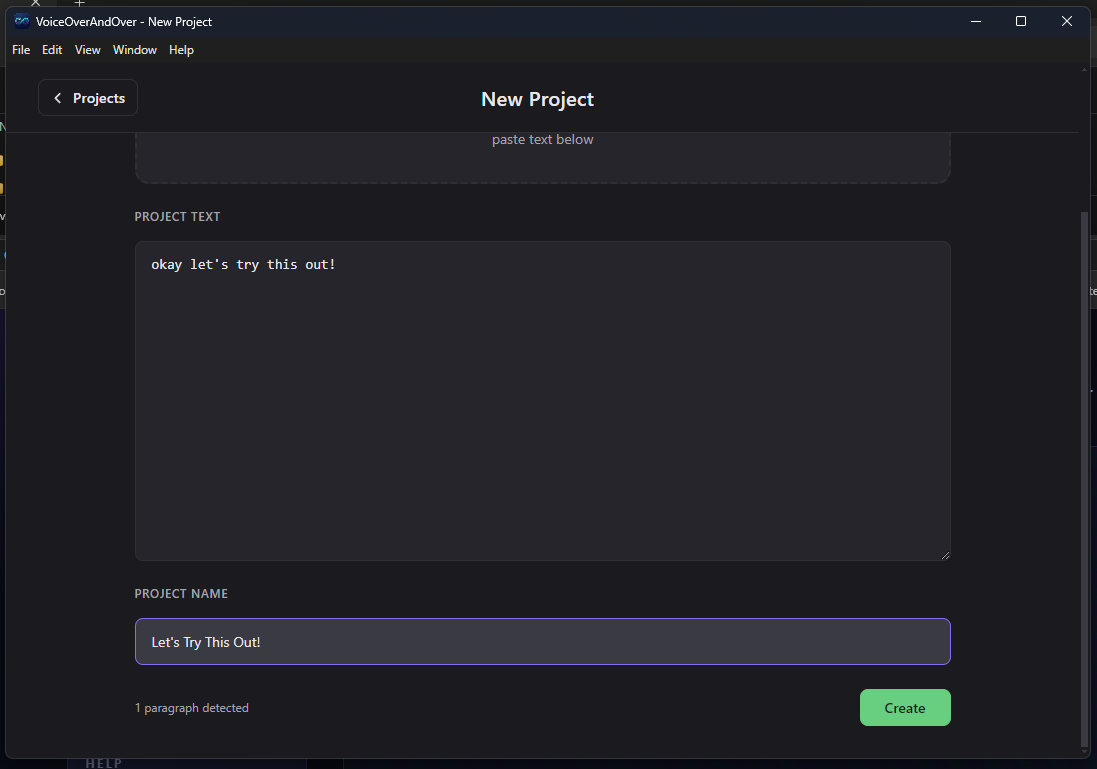
New Project screen
This is where you give a project a name and paste in the script. The app takes the script, splits it into paragraphs (one per non-empty line), and builds a fresh editing session with one recordable row per paragraph.
Fields
Project name
A short, friendly name for the project. It shows up on the Projects screen card and as the title at the top of the Editor. It is also the default base name when you export the merged audio file.
You can use any characters that are valid in a filename on your operating system. Names are not required to be unique - you can have two projects called "Episode 1" if you want; they are tracked by an internal id, not their name.
Script
The body of your voice-over. Paste it in, or drag a .txt or .md file from your desktop onto the textarea. As soon as the script has any content, the app shows a live paragraph count just below the textarea so you can see how many recordable rows you are about to create.
Every non-empty line is one paragraph. Line breaks define paragraphs - blank lines between paragraphs are dropped. This works the same regardless of whether your source uses Windows (CRLF), Unix (LF), or old Mac (CR) line endings.
What counts as a "paragraph"
It is up to you. The app does not look at sentence structure, punctuation, or word count - it just splits on line breaks. So if you write:
- One sentence per line - you get one row per sentence. Useful for pacing or for very short, punchy lines.
- One paragraph per line - you get one row per paragraph. Useful for longer narrative recording where you want each "beat" of the script as a single take.
- Five sentences on one line - you get one row covering all five sentences. The app will not split them for you.
Put a line break wherever you want to be able to re-record independently. If three sentences belong together as a single take, leave them on one line. If you want the freedom to redo just the middle sentence, put each on its own line.
Importing a script file
You can drag a .txt or .md file onto the textarea. The app reads the file as plain text and dumps its contents in. Markdown markup (headings, lists, emphasis) is kept literally - if your script has # Title at the top, the recordable row for that paragraph will literally read "# Title". Strip any formatting you do not want to read aloud before importing.
Buttons
Create project
Creates the project, saves it to disk, and takes you to the Editor screen with one empty row per paragraph. The project shows up at the top of your Projects list immediately.
Cancel
Discards anything you have typed and returns to the Projects screen. Nothing is saved.
Restart mode
This screen has a second purpose: when you click Start Over on a project card, the app takes you back here in restart mode. In restart mode:
- The Project name field is pre-filled with the existing project's name.
- The Script field is pre-filled with the existing project's text.
- The big confirm button reads Start Over instead of Create project, as a reminder that you are about to overwrite an existing project.

You can edit either field before confirming. If you back out (close the screen or click Cancel), the existing project is left completely alone. Only confirming actually clears the recordings and replaces the text.
Once you click Start Over in restart mode, every recording in that project is gone. The project keeps the same id and slot in your Projects list, but its audio folder is wiped and rebuilt from the new text.
Reference: New Project controls
| Control | What it does |
|---|---|
| Project name | Text field. Required. Visible on the Projects screen and in the Editor title. |
| Script | Multi-line text area. Required. Accepts dragged-in .txt or .md files. Every non-empty line becomes one paragraph. |
| Paragraph count (read-only) | Shows the current count of non-empty lines in the Script field. Updates live as you type. |
| Create project | Saves the new project to disk and opens it in the Editor. Replaced by Start Over in restart mode. |
| Cancel | Returns to the Projects screen without saving. |