 VoiceOverAndOver
Four screens. One clean voice-over.
VoiceOverAndOver is built for audiobook authors, podcasters, narrators, e-learning instructors, and anyone reading a long script into a microphone. Here is the entire app, in order, with the headache each step removes.
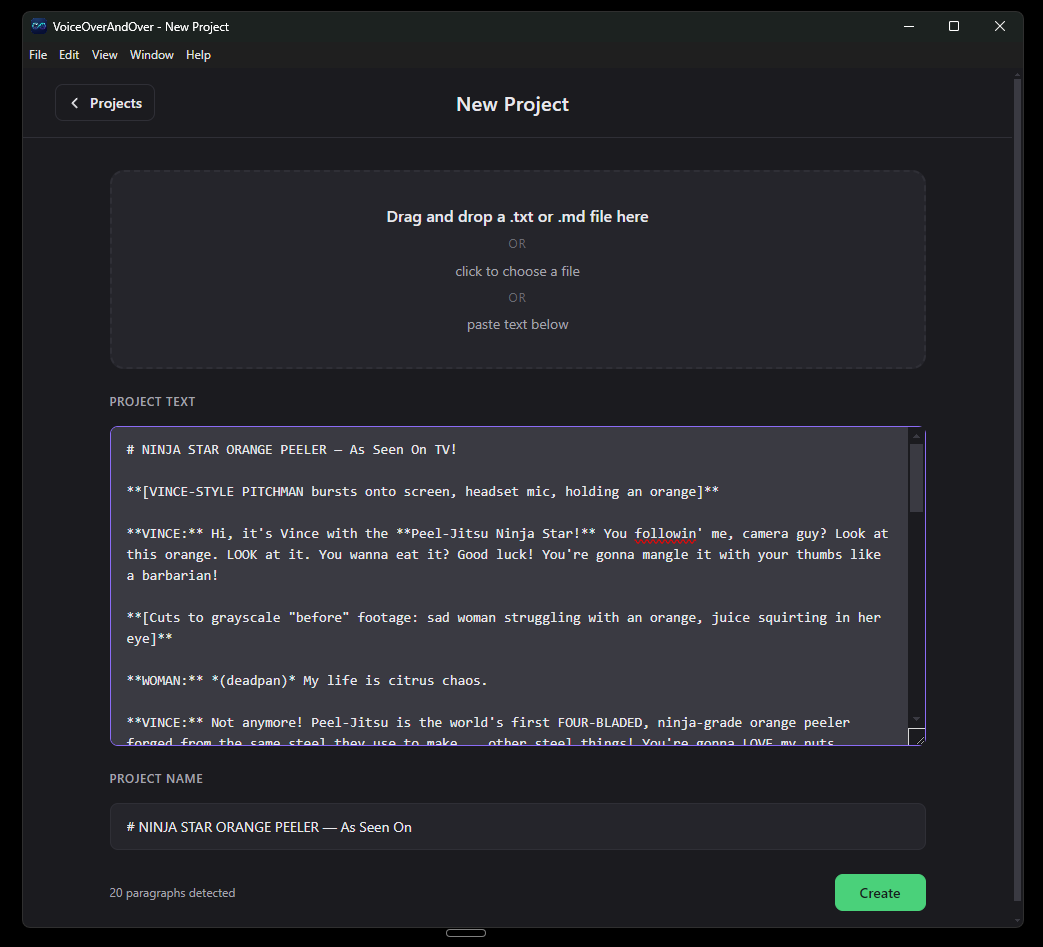
Drop your script in. The boring step.
Paste your script, or drag a .txt or .md file onto the window. The app splits it into paragraphs and tells you exactly how many takes you're signing up for before you commit.
Why this matters: the script is the source of truth from now on. Every row of audio is tied to the exact text it speaks. If the text changes, you re-record that row. You never have to hunt for "where did I say that line" in a 40-minute waveform.
Record one paragraph at a time.
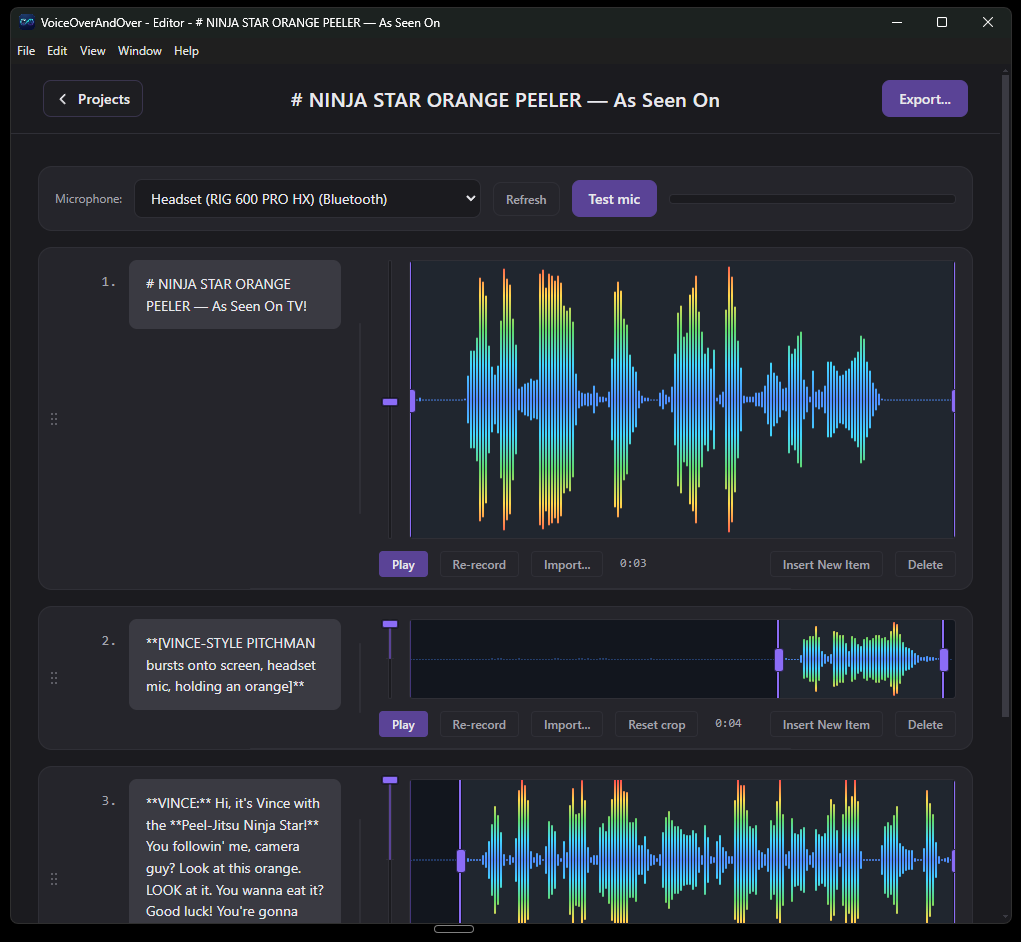
Pick your mic, hit Record on a row, read the line, hit Stop. Flubbed it? Click Re-record on that row. That's it. The whole interface.
Why this matters: reading a thirty-minute script straight through without a stumble is something pros do and almost no one else can. By the time most people get to paragraph twenty, they're tired and starting over for the tenth time. Here, a flub costs that paragraph. The first paragraph and the last paragraph get the same number of takes and the same energy.
Rearrange. Crop. Insert. No DAW required.
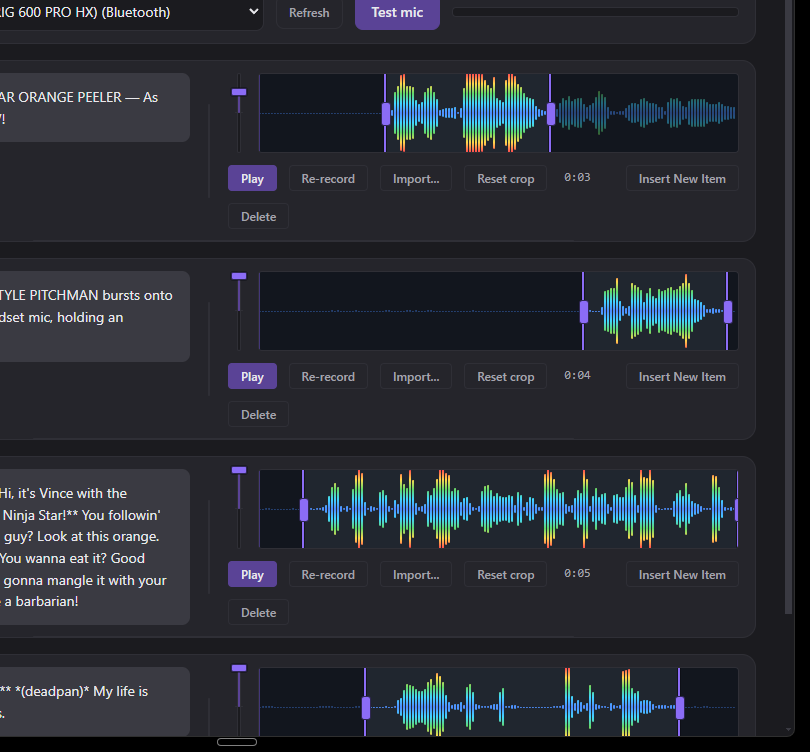
Drag rows to reorder them. Drag the crop handles to trim silence off either end of a clip. Insert a new row anywhere - the script and audio stay aligned automatically.
Why this matters: when the client rewrites paragraph 14, or you want to swap two sentences, or you need to insert a beat between two thoughts - the answer is never "open Audacity and try to splice it." It is one drag or one click, and the merge step rebuilds the final file.
One click. Final audio. Captions on the side.
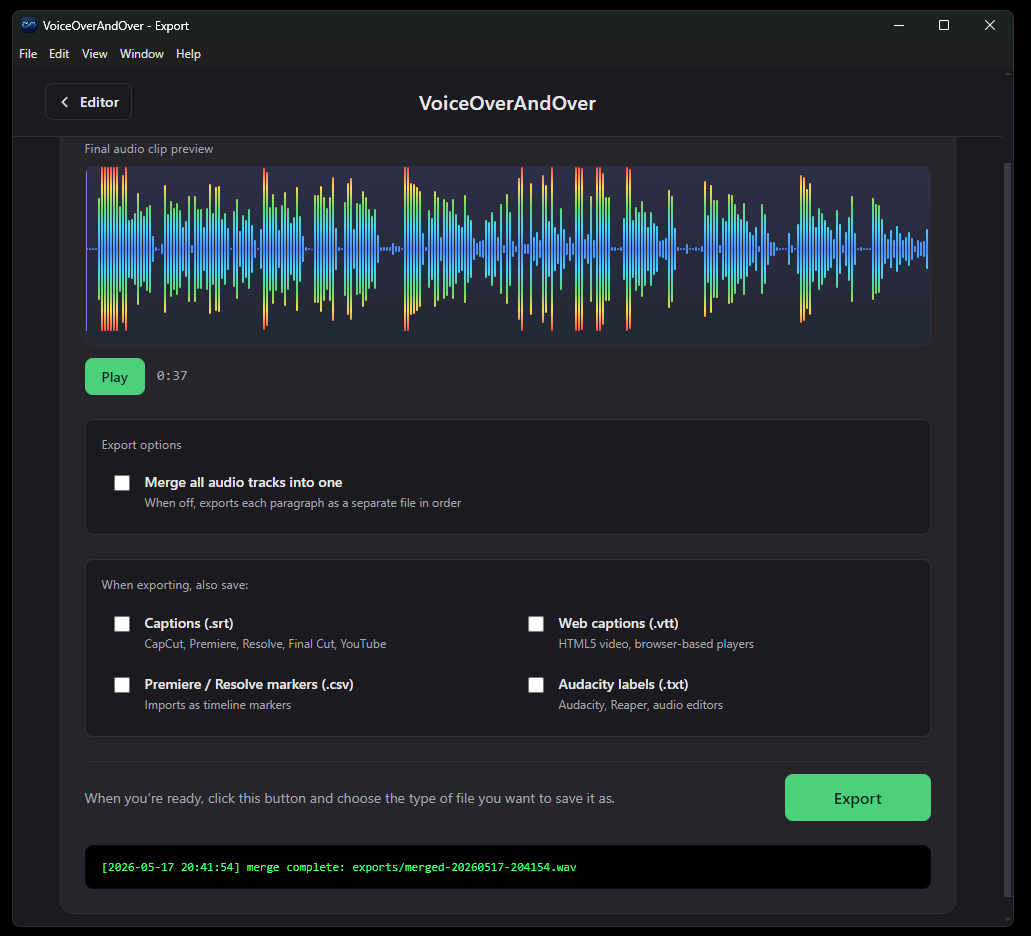
Hit Export. The app merges every paragraph into one clean file. Turn on Equalize and every paragraph hits the same LUFS target, so the loudness is consistent end to end across however many recording sessions it took.
Tick the boxes for SRT, WebVTT, Premiere/Resolve markers, and Audacity labels and they all come out in the same export pass - time-aligned, no transcription pass, no manual timing. The app already knows the text of every paragraph and the duration of every clip, so the math is free.
The deeper why
A few more headaches the paragraph-based workflow takes off the table.
Audio editors are overkill for this
Audacity, Reaper, Audition, and Premiere can all do voice-over, but they ask you to learn a full DAW for a job that is really just "record, trim, merge." For someone who just wants the audio file, that learning curve is the whole obstacle.
VoiceOverAndOver presents one screen per task: pick a project, see your paragraphs, hit Record, hit Export. Nothing to configure that is not visible on the screen.
Volume drift across sessions
A long voice-over almost always spans multiple sittings. Mic distance changes, the room is quieter at night, you wake up with a different voice. The final file ends up with paragraphs that are noticeably louder or thinner than the ones around them.
Equalize runs every paragraph through ffmpeg's loudnorm filter at a user-chosen LUFS target (default -16, a standard podcast/audiobook level). The merged output is consistent in loudness end to end without you having to know what LUFS means.
Captions normally cost hours
Publishing voice-over to YouTube, an LMS, a video timeline, or an accessible web page eventually means captions or chapter markers. The standard workflow is to transcribe the audio (or pay to have it transcribed), then hand-align timestamps in a caption editor. For a 30-minute narration that is a half-day of work.
The app already knows the text and the durations, so it writes time-aligned SRT, WebVTT, Premiere/Resolve CSV markers, and an Audacity label track for free at export. Four checkboxes, one click.
Project sprawl
Long voice-over jobs accumulate: the source script, dozens of take files, intermediate mixes, the final export, sometimes a caption file. They end up scattered across the desktop and the Downloads folder.
Each project is a single folder under the OS user-data path containing the script, every paragraph's audio, and the exports. Reopening picks up exactly where you left off, including which paragraphs still need to be recorded.
Cross-platform, one workflow
Voice-over creators often work on a laptop in one OS and a desktop in another, or collaborate across both. Most pro audio tools have quirks per platform.
The app runs the same on Windows and macOS, with the same UI and the same project format. Projects are portable folders, so moving work between machines is a copy-paste.
The script is the source of truth
In a DAW the script is a separate text file you keep glancing at, and the audio is a waveform that does not know what it is saying.
VoiceOverAndOver shows you the line you read above the clip you read it into. If the text changes, you re-record that row. The script and the audio stay aligned forever.
Ready to register?
Try the free build first. If you find yourself reaching for Equalize, caption exports, or unlimited project history, come back and unlock the rest.